Best Offline OCR Tools 2026: Umi-OCR for Batch PDF and Private Documents
How to Choose an Offline OCR Tool for Private, Batch, and Document Workflows
Short answer: Choose offline OCR when the images contain contracts, financial statements, medical records, identification documents, or other material that should not be uploaded to a third-party server. Umi-OCR is a strong option for Windows, macOS, and Linux users who need screenshot OCR, batch image recognition, PDF document recognition, and QR code scanning or generation without sending image data off the device. Browser-based online OCR remains convenient for a one-off image, while desktop commercial tools can have an advantage when complex PDF layouts must be reconstructed, and cloud OCR APIs are useful when a server-side application needs automated recognition.
OCR—optical character recognition—turns visible text in images and scanned documents into machine-readable text. The right tool is not simply the one with the highest benchmark score. Installation, privacy, batch handling, PDF quality, and the amount of human verification all affect the result. This guide compares the main options and explains a practical offline OCR workflow.
Why Offline OCR Matters for Sensitive Documents
A document does not need to be legally confidential to be sensitive. A contract may reveal pricing terms, a financial statement may contain account information, a medical record may contain a health condition, and an identity photograph may contain personal identifiers. Uploading any of these files to a browser OCR service or a cloud API can move the data to infrastructure controlled by another organization.
Offline OCR reduces that exposure because recognition runs locally. In Umi-OCR, the application ships with its own recognition engine, performs text extraction on the user’s machine, and keeps image data on the device. It also works without an internet connection. For a privacy-conscious organization, that local processing model is often more important than a small difference in convenience.
Offline operation also avoids unexpected failures caused by network restrictions, service outages, file-size limits, or upload queues. It can be especially useful for legal offices, clinics, finance teams, researchers, and anyone handling records under an internal data-handling policy.
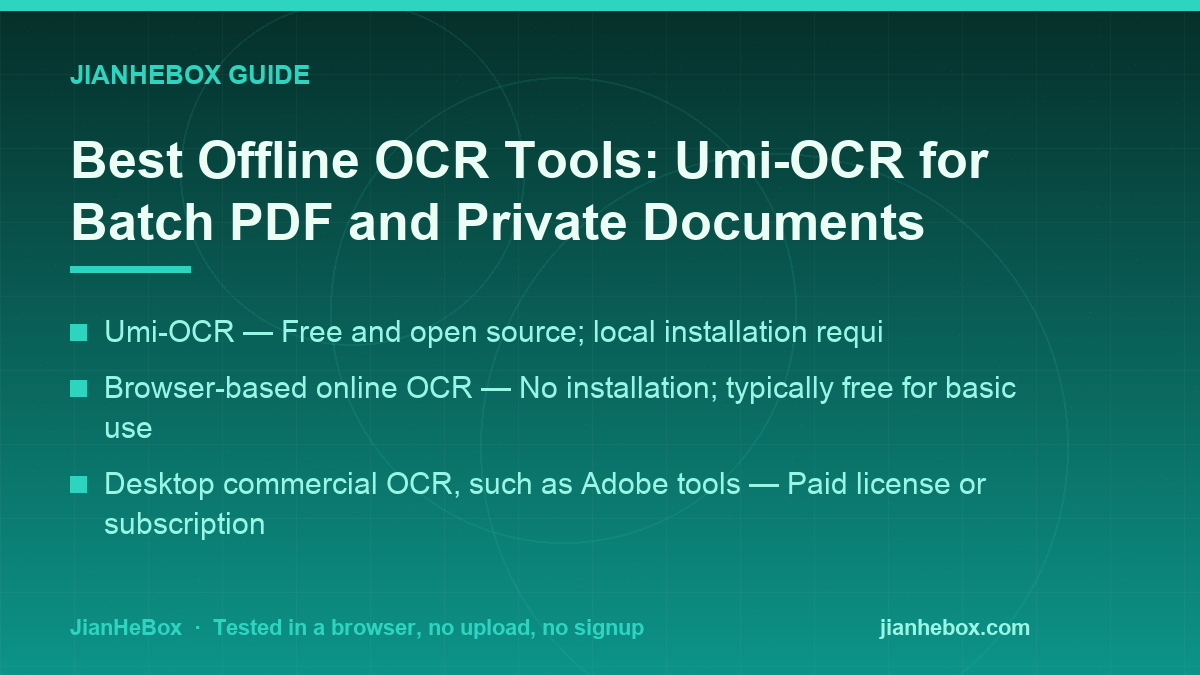
Offline OCR, Online OCR, Desktop Software, and Cloud APIs Compared
| Option | Install cost | Batch capability | Accuracy and document handling | Privacy | Best fit |
|---|---|---|---|---|---|
| Umi-OCR | Free and open source; local installation required | Strong fit for batch images and PDF document recognition | Clear printed English and digits can approach 99%; clear printed Chinese is typically 85–95%. Complex layouts still need care. | Image data remains on the user’s device; recognition works offline | Sensitive files, repeated image batches, local PDF recognition, screenshot OCR, and QR code tasks |
| Browser-based online OCR | No installation; typically free for basic use | Usually better for individual images than for large document runs | Convenient for clear, single-page images; exact quality varies by service and language | Files must be uploaded to the provider’s servers | One-off quick jobs, occasional text extraction, and users who do not want to install software |
| Desktop commercial OCR, such as Adobe tools | Paid license or subscription | Supports document-oriented workflows, subject to the product and version | Desktop-grade tools can retain an edge in complex layout restoration | Can vary by product, settings, and whether optional cloud features are enabled | Professional PDF workflows where layout fidelity and established editing tools justify the cost |
| Cloud OCR APIs | No desktop install; integration and usage may have costs | Highly suitable for automated application workflows | Quality depends on the API, model, language, and document configuration | Files are transmitted to the provider’s infrastructure | Software integrations, automated pipelines, and systems designed around server processing |
Online OCR is not automatically inaccurate, and offline OCR is not automatically flawless. The meaningful distinction is where the data is processed. A browser tool may be the fastest choice for a harmless receipt, while an offline application is the safer default for confidential material. Commercial desktop software can be preferable when recreating a complicated PDF layout is the main objective, even if it costs more.
Why Umi-OCR Is a Good Choice for Offline and Batch OCR
Umi-OCR combines a free, open-source application with a locally operated recognition engine. It supports four useful job categories: screenshot OCR, batch image recognition, PDF document recognition, and QR code scanning and generation. This makes it more versatile than a simple upload box for users who regularly work with images.
The local-first design also makes its privacy claims straightforward to understand. You do not need to trust a policy statement about future retention practices because the recognition process happens on your machine and the image does not leave the device. That does not mean OCR output should be treated as automatically authoritative, but it removes the file-upload decision from the workflow.
For batch work, Umi-OCR is more suitable than a typical browser OCR page. Browser tools are excellent when you need one quick extraction and do not want to install anything. The offline application becomes more valuable as the number of files rises because it supports structured batch recognition and local PDF processing.
Installing Umi-OCR on Windows, macOS, and Linux
1. Obtain the correct official build
Start from the project’s official distribution page or repository. Download the package that matches your operating system and processor architecture. Do not rely on an unofficial mirror merely because it appears in a search result. The official documentation is the source of truth for current filenames, system requirements, release notes, and supported platform instructions.
On Windows, use the current stable release rather than an old cached installer. On macOS, check whether the available application requires a particular macOS version or a specific processor build. On Linux, verify whether the project publishes a packaged application, an AppImage, or another installation format, and check the official documentation for dependencies and permissions. These details can change between releases.
2. Complete the local setup
Install or unpack the application, launch it, and grant only the permissions needed for the folders you plan to process. For batch workflows, place source images and PDFs in a dedicated working directory. Keeping originals, generated text, and corrected results in separate folders makes spot-checking and auditing easier.
Because Umi-OCR runs its own recognition engine and works offline, the core extraction process does not require an online OCR subscription or a browser upload. Some optional features or updates may still require internet access, so consult the release documentation if a particular control is unavailable.
3. Learn the main interface
The interface is organized around common OCR tasks. Look for the screenshot capture function, image recognition area, batch recognition function, PDF document recognition function, and QR code tools. Exact labels and placement can vary by release, but the operating sequence is consistent:
- Select the type of content you are processing.
- Choose the files or capture the screen region.
- Set the source and output locations.
- Run recognition.
- Open the result and compare it with the source.
4. Capture text with screenshot OCR
Screenshot OCR is useful for copying text from a terminal, a scanned page displayed on screen, a dashboard, or an image in another application. Start with a clearly bounded capture area. Cropping away irrelevant borders can reduce noise and make the result easier to verify.
For best results, zoom in before capturing so the characters are rendered at a readable size. Avoid capturing overlapping windows, animated content, or text that is partly covered by the cursor. After recognition, paste the extracted text into an editor rather than publishing it without inspection.
5. Recognize a batch of images
For multiple images, use the batch recognition function and select a folder containing the source files. Decide in advance whether you want one text file per image or a combined result. Per-image outputs are usually easier to audit because each file can be opened beside its original. A combined file may be more convenient for search, indexing, or downstream processing.
Run a small test batch before processing a large set. Check the first page, the last page, and several pages from the middle. If the results are poor, adjust the source or recognition settings and repeat the test. Do not wait until the final batch to discover that the pages were captured at the wrong resolution or angle.
6. Recognize PDF documents locally
Use the PDF document recognition function for text-based documents that need extraction, scanned PDFs that need OCR, or mixed documents containing both selectable text and page images. The workflow generally begins by selecting the PDF, choosing the output location, starting recognition, and then reviewing the generated result.
For complex documents, inspect headings, columns, tables, footnotes, and page order. OCR engines may recover the words while still associating them with the wrong regions. If the main requirement is an accurate searchable PDF rather than plain extracted text, confirm the available export method in the current Umi-OCR documentation. If the release does not provide the exact output format required, complete recognition locally and use a compatible PDF tool for the final conversion.
7. Tune advanced settings carefully
Advanced tuning can improve results when the source material has consistent problems. Depending on the available release and engine options, relevant controls may include language selection, page segmentation, text orientation, and recognition or output parameters. The exact setting names should be checked in the official documentation.
Change one setting at a time on a small sample. If a batch uses a consistent scanner, camera, language, or document format, record the working configuration and reuse it. This creates a repeatable workflow and makes it easier to explain why two batches produced different results.
8. Use CLI or API access when appropriate
For repetitive local automation, check the official Umi-OCR documentation for the current command-line interface or local API support. Availability and invocation syntax can vary by release, so use the commands shown for the installed version rather than copying an outdated example.
A typical local automation sequence is:
- Prepare an input folder containing images or PDFs.
- Start the application and any documented local interface service.
- Submit the file path or batch request using the documented method.
- Write the returned text to an output file.
- Log failures and compare a sample with the original.
Keep the interface bound to the local machine unless remote access is deliberately configured and secured. Local OCR protects the image data; exposing an unsecured local service to a network changes the operational risk.
A Practical Batch PDF OCR Workflow
Step 1: Scan the documents
Use a flat scanner surface and a resolution appropriate to the type of text. Place pages squarely, remove shadows, and make sure every page is in focus. Scan in the correct orientation. If the pages contain different sizes, preserve them as separate files with descriptive names.
Step 2: Organize and batch-recognize
Move the scanned PDFs into a read-only source folder. Open the batch or PDF recognition tool, select the files, choose an output directory, and run the process locally. Avoid modifying the originals during OCR. If a run fails, you should be able to reproduce it from an unchanged source.
Step 3: Select the output format
Choose the format according to the next task:
- Plain text: Best for searching, quoting, copying passages, and simple data extraction.
- Markdown: Useful when headings, lists, and document structure should remain visible in an editor or knowledge system.
- Searchable PDF: Useful when the original page layout must remain visible while the text becomes selectable and searchable.
Confirm which of these outputs the installed Umi-OCR release provides directly. If searchable PDF creation is not available or does not meet the required fidelity, use the official documentation to identify a supported conversion step. The important point is to keep the recognition stage local.
Step 4: Spot-check every output class
Review the first and last pages, every page containing a table, and a random sample from the middle. Compare names, dates, amounts, percentages, account numbers, and legal clauses character by character. If one document in the batch uses a different font, language, or orientation, review that document separately.
Step 5: Verify and export
Correct confirmed OCR errors in the extracted text or regenerate outputs with adjusted settings. Retain the original scan, the raw OCR result, and the verified version. This three-file pattern supports audit trails, quality review, and safe reprocessing.
OCR Accuracy Checklist: Improve Results Before Processing
Camera angle
Keep the camera or scanner perpendicular to the page. Perspective distortion bends characters and makes columns harder to separate. If possible, flatten the paper, align page edges, and capture all four corners. Re-scan rather than trying to repair a severely angled image with software alone.
Lighting
Use even, diffuse light. A strong shadow across one side can resemble missing strokes, while glare can erase characters. Move the camera or lamp until every region has similar brightness. Do not use a flash at a shallow angle if reflections appear on the page.
Resolution
Capture enough detail for each character to be distinguishable. Very small text requires more resolution than a large heading. Avoid unnecessary interpolation or repeated compression, because both can blur character edges. Test one page at the intended resolution before capturing an entire batch.
Layout complexity
Single columns and widely spaced paragraphs are usually easier than dense text, multi-column articles, forms, tables, diagrams, or pages with footnotes. An engine can read the characters but still scramble reading order. In industry comparisons between PDFCraft and Adobe Acrobat OCR, desktop-grade tools still held an edge in complex layout restoration. That is why complex PDF output may justify a commercial desktop tool even when local Umi-OCR performs well for ordinary pages.
Character set and language
Select the correct language when the available settings require it. Mixed-language pages may need particular attention. Do not assume a model trained or tuned for one language will preserve the same accuracy for another.
Realistic accuracy expectations
For clear printed text, Chinese recognition typically lands around 85–95%, while English and digits can approach 99%. These are realistic ranges, not guarantees for every page. Handwriting, skew, low contrast, blur, unusual fonts, and complicated layouts reduce accuracy noticeably.
Content that always needs human review
Always verify:
- Names, initials, addresses, and identification numbers
- Dates, times, deadlines, and contract versions
- Financial amounts, currencies, percentages, and account details
- Medical terms, dosages, test results, and patient identifiers
- Legal obligations, exceptions, and clause numbering
- Tables, totals, headers, footnotes, and page order
- Characters that commonly confuse OCR, including 0 and O, 1 and l, and similar punctuation
Human review is not merely optional for these fields. A single wrong digit can change the meaning of a medical instruction, invoice, date, or legal commitment.
Privacy and Compliance for Medical, Financial, and Legal Documents
Medical records can contain diagnoses, treatment information, and patient identifiers. Financial statements can reveal balances, transactions, payroll data, and account information. Legal documents may contain confidential negotiations, personal details, and obligations that have not been made public. For all three categories, cloud OCR should not be used without a specific, authorized, and reviewed data-processing decision.
Uploading a file can create copies in temporary storage, logs, processing systems, or downstream systems. Depending on the service and organization, retention and deletion requirements may also apply. A zero-install product is convenient, but convenience does not remove the need for a lawful basis, internal approval, and appropriate security controls.
Offline OCR addresses the central transmission risk because the image remains on the user’s device. It does not eliminate every privacy issue. The device must still be secured, the output files must be stored appropriately, and users must follow policies for access, backup, and deletion. Sensitive results should not be copied into unapproved web applications after recognition.
Before adopting any OCR workflow, identify the document classes, permitted locations, retention periods, and review requirements. For highly regulated or unusual use cases, consult the relevant compliance or security team and the tool’s official documentation. Offline processing is a strong technical control, but it should form part of a complete document-handling process.
A Hybrid OCR Strategy for Everyday Work
The most practical choice depends on both sensitivity and workload:
- Use browser-based online OCR for one-off, low-risk jobs. It requires no installation, works across devices, and is suitable for a single image or quick transcription.
- Use Umi-OCR for sensitive documents and batch processing. Files remain local, and the application provides screenshot, batch image, PDF, and QR functionality.
- Use commercial desktop OCR when complex layout restoration is worth the license cost. This is particularly relevant for professionally designed PDFs with difficult reading order.
- Use cloud OCR APIs for server-side automation. These fit application integration, but their uploads, retention, and cost model must be evaluated explicitly.
For example, a team could use a browser tool for a public flyer, Umi-OCR for signed forms, and a desktop commercial tool for a complex contract PDF that must look identical to the original. The policy should make the boundary clear before users begin processing files.
Frequently Asked Questions About Offline OCR
1. What is the best offline OCR software?
For free, open-source, fully offline OCR with screenshot, batch image, PDF, and QR support, Umi-OCR is a strong choice. The best option still depends on your documents. Complex layout restoration may be better handled by a commercial desktop tool, while teams needing server automation may require a cloud API. Compare privacy, workflow, and output requirements rather than choosing from a single accuracy claim.
2. Does Umi-OCR upload images or documents?
No. Umi-OCR ships with its own recognition engine, performs text extraction on the user’s machine, and keeps image data on the device. Its core recognition workflow operates offline. Users should still protect the local device and any saved OCR output, and they should check the official documentation for details of optional features in a particular release.
3. Can offline OCR recognize Chinese and English text?
Yes. For realistic quality expectations, clear printed Chinese text typically achieves 85–95% recognition, while English and digits can approach 99%. Handwriting, skew, low contrast, blur, and complex layouts can reduce those results. Always select the appropriate language setting where available and test a representative sample before a large batch.
4. Is browser-based online OCR more accurate than offline OCR?
Not necessarily. Accuracy depends on the engine, language, image quality, document complexity, and settings. Online tools may have broad language support, including services that support more than 100 languages, but they require uploads. Offline tools remove the upload step and keep processing local. Accuracy should be measured on your own document sample.
5. How accurate is batch PDF OCR?
Batch processing does not change the underlying limits of OCR. Clear printed English and digits may approach 99% recognition, while clear printed Chinese may fall between 85–95%. Dense layouts, handwriting, skewed pages, and low contrast can lower results. Spot-check every page class and manually verify names, numbers, dates, monetary values, medical information, and legal clauses.
6. Can Umi-OCR replace Adobe Acrobat for OCR?
It can cover many local text-extraction and document-recognition needs without a paid license or cloud upload. However, industry comparisons in PDFCraft versus Adobe Acrobat OCR found that desktop-grade tools still had an edge in complex layout restoration. If preserving a difficult PDF layout is critical, test both tools with representative pages or keep a commercial desktop tool for the most complex files.
Data verified November 2, 2026. Feature sets per official docs.
Data verified November 2, 2026. Pricing, quotas, and features are per official platform pages.